This guide shows how to get a real-estate website in your office’s name with a dashboard, then customize and launch it without any coding.
Screenshots are from a demo website, so your content may look different.
Request your website
Request your website in under a minute. You won’t pay anything yet.
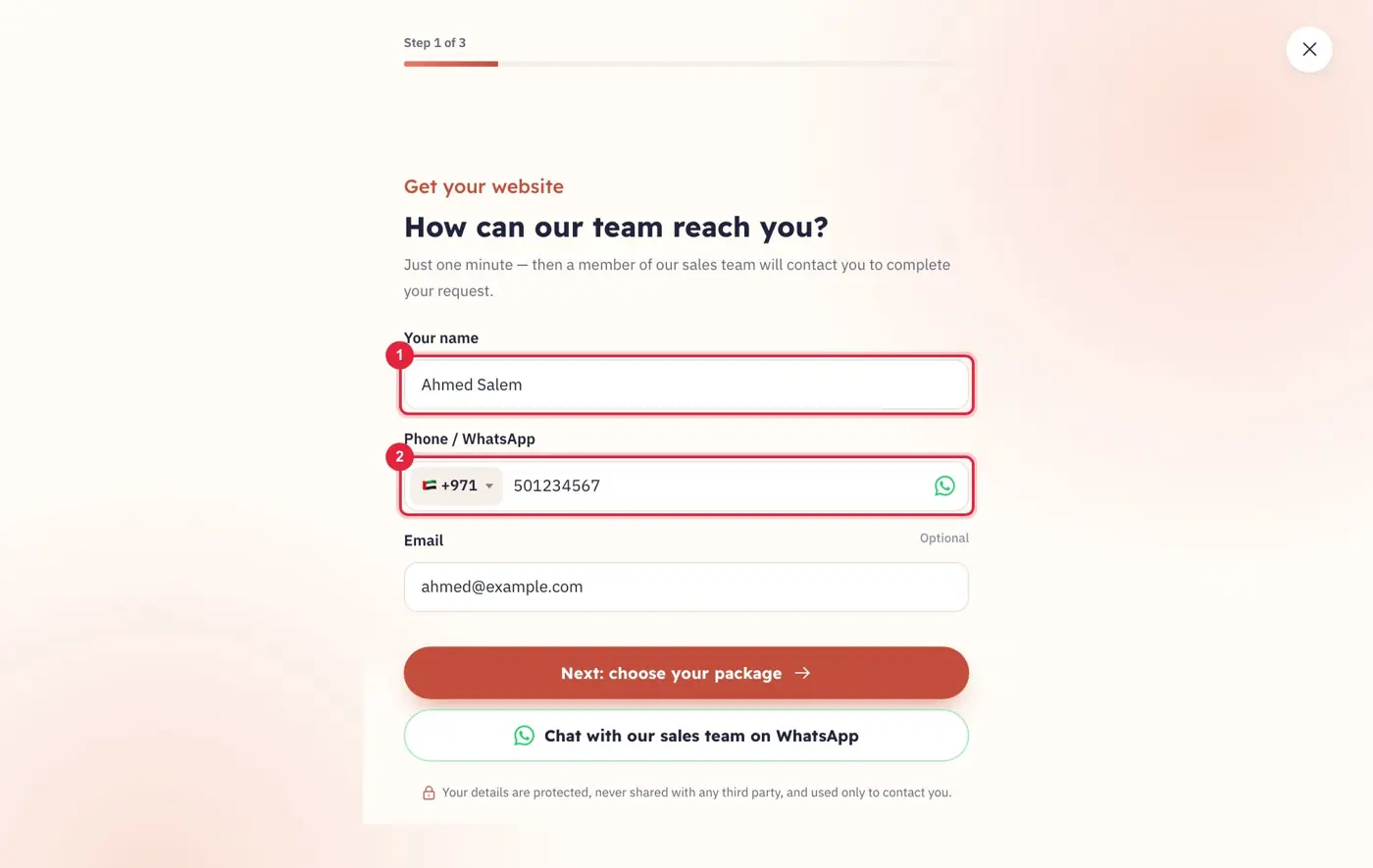
1Press “Get your website”, then enter (1) your name and (2) your phone number.
Your contact details
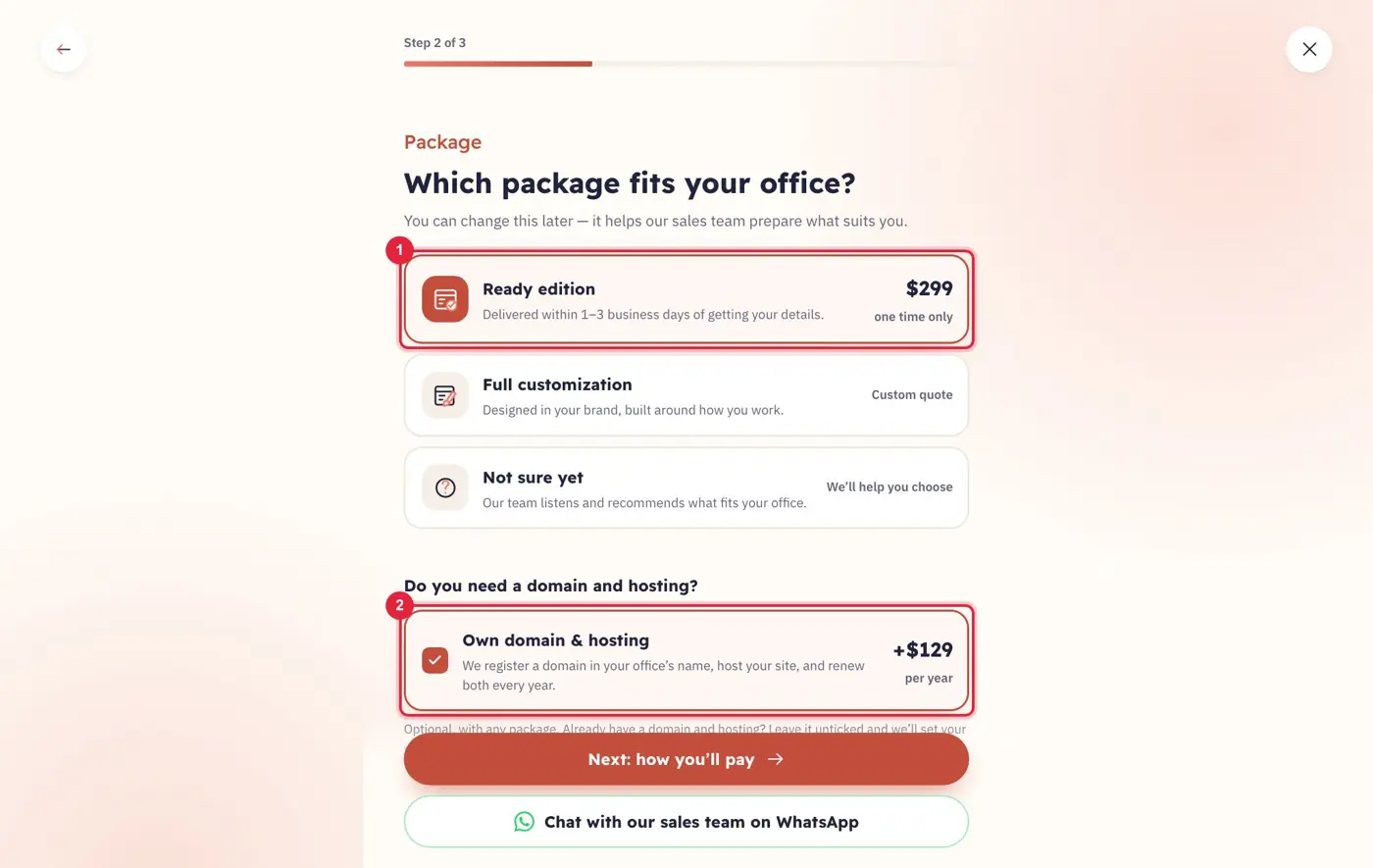
2Choose (1) a package. If you need a domain and hosting, tick (2) “Own domain & hosting”.
Package and add-ons
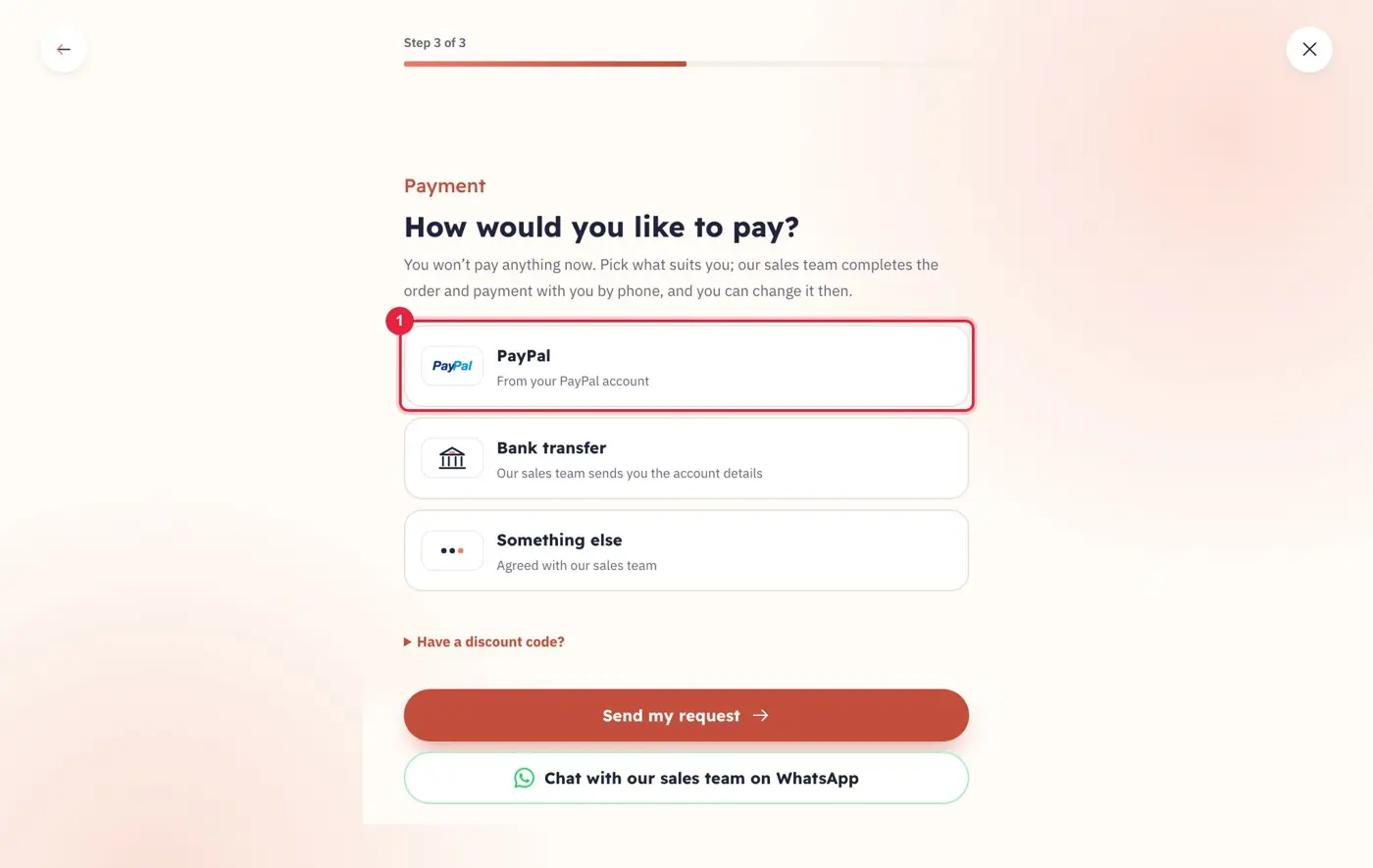
3Choose a payment method available in your country, then send your request.
Payment method
Our sales team will contact you to complete the order and payment by phone.
Receive your website
Once your order is complete, our team sets up your website and sends you its link and login details.
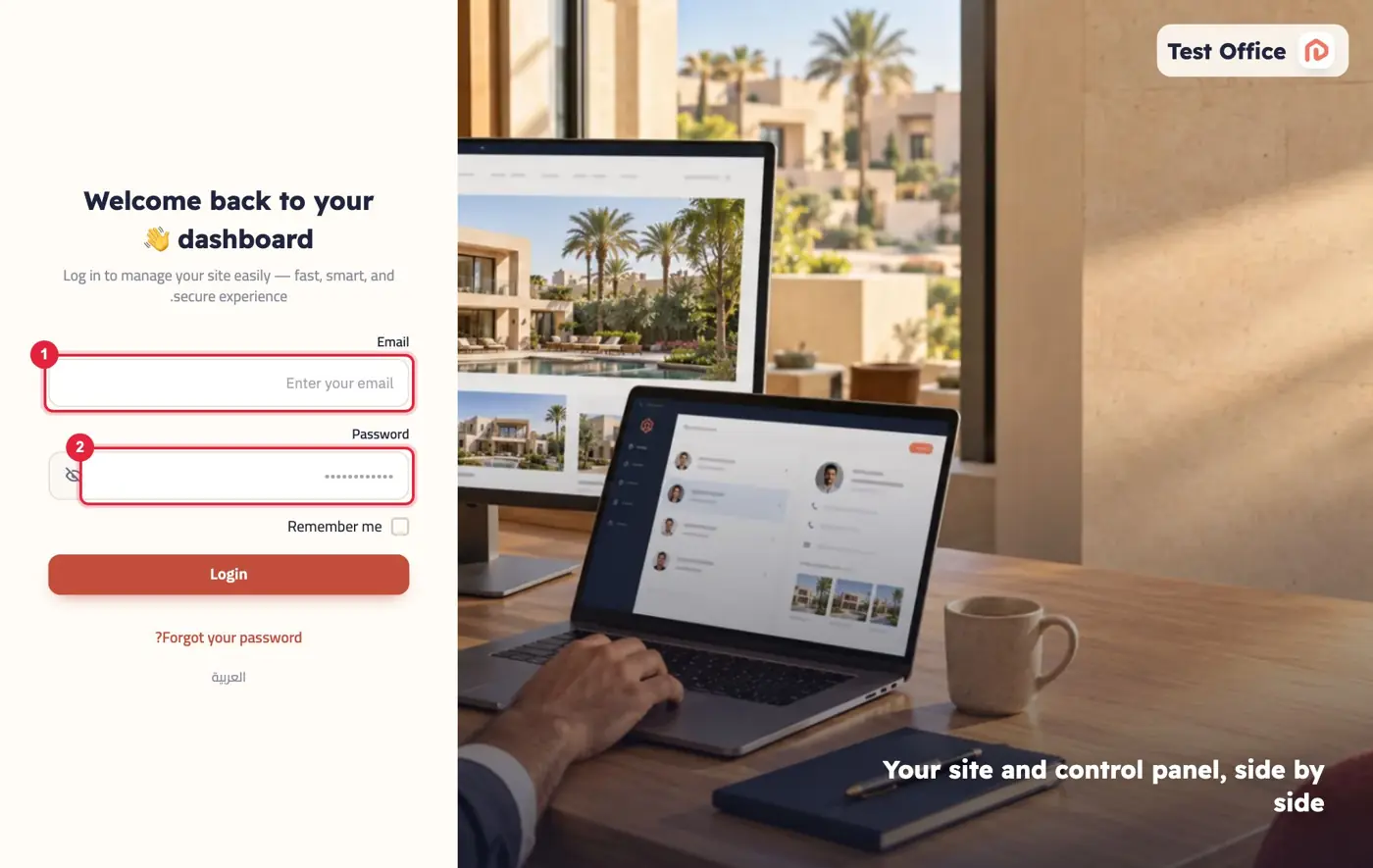
1Open your dashboard link and enter (1) your email and (2) your password. We recommend changing your password after your first login.
Logging in to your dashboard
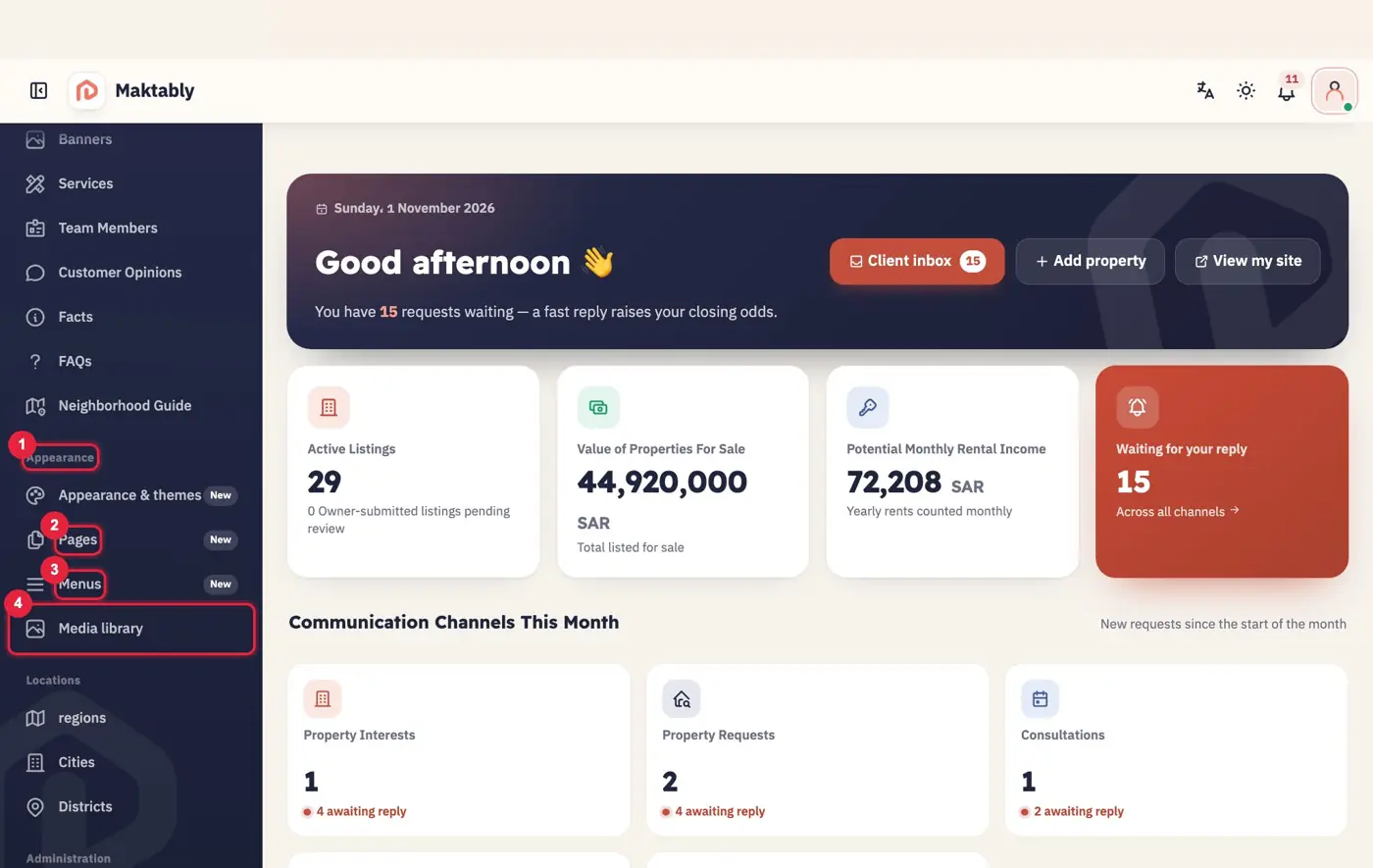
2The side menu has everything you need to customize your site: (1) Appearance & themes, (2) Pages, (3) Menus, (4) Media library.
Your dashboard
Choose a theme
Start with the theme closest to your office’s style. You can change it later.
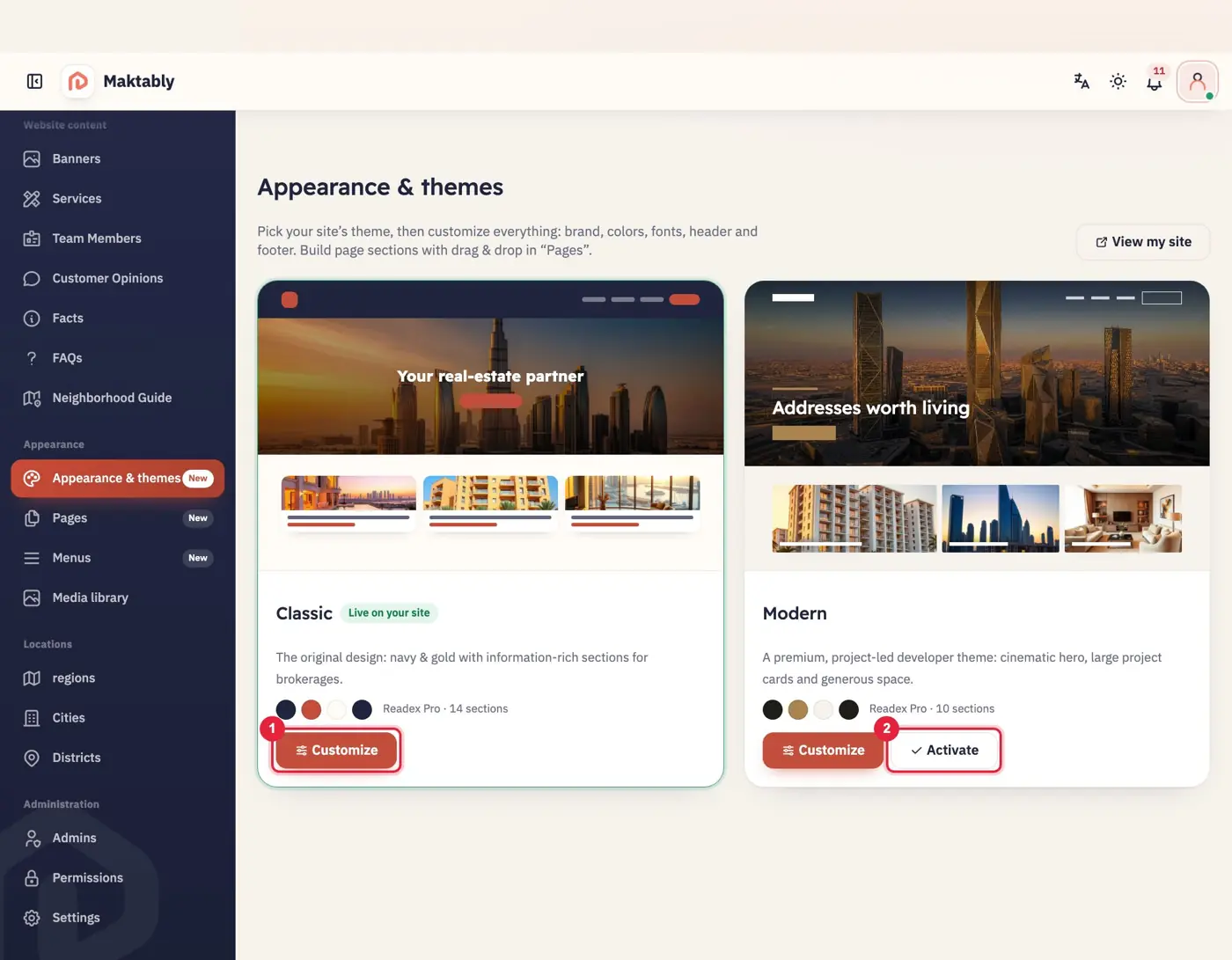
Open Appearance & themes. Press (1) “Customize” to edit your current theme, or (2) “Activate” to use another one.
Available themes
Logo and details
Add your office’s name, logo and contact details.
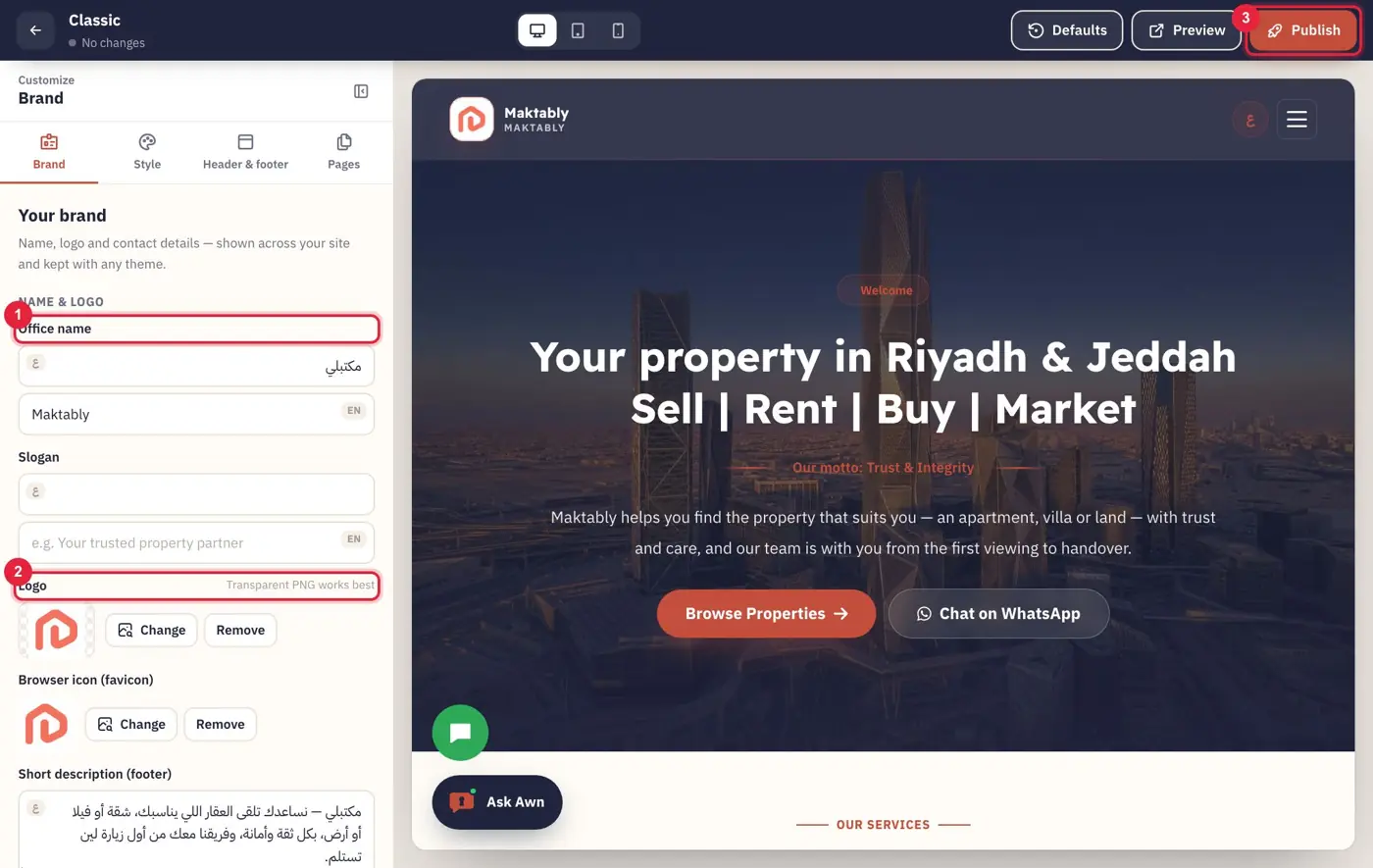
1In the Brand tab, enter (1) your office name and upload (2) your logo. Changes appear in the preview right away. When you’re done, press (3) “Publish”.
Name and logo
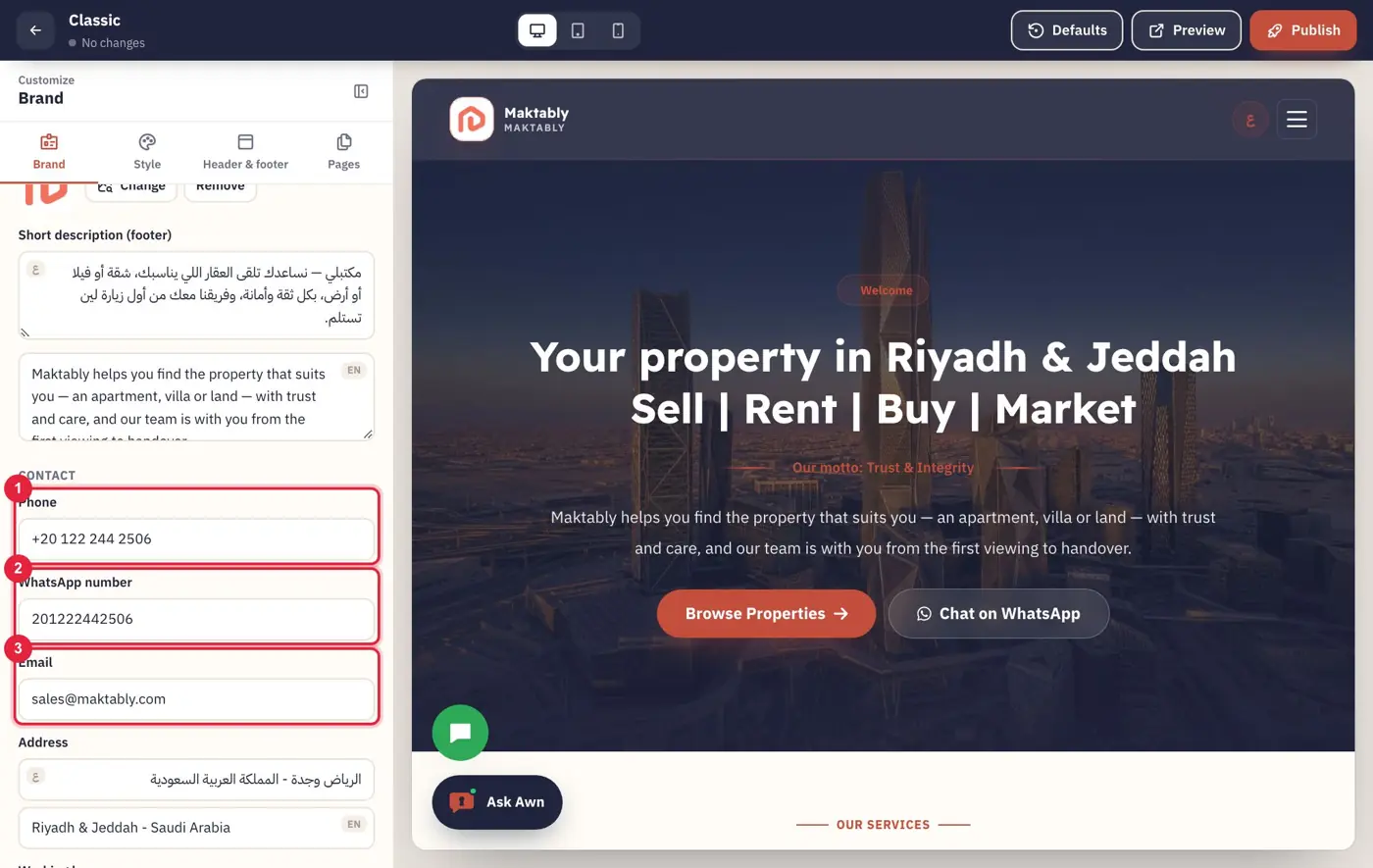
2In the same tab, enter (1) your phone, (2) WhatsApp number and (3) email, then add your address, working hours and social accounts.
Contact details
For the best result, use a PNG logo with a transparent background.
Colors and fonts
Make your website match your brand colors.
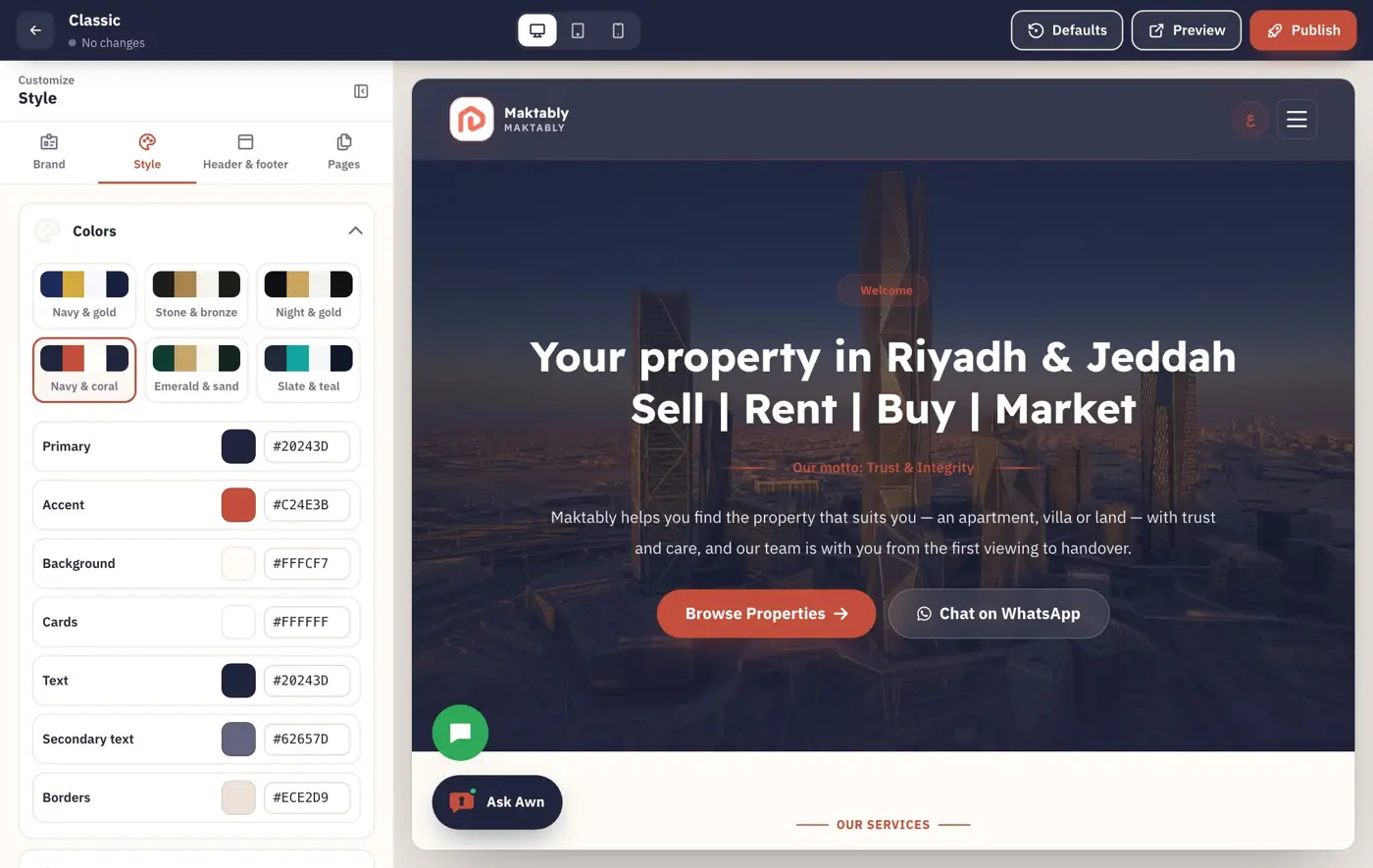
Open the Style tab and pick a ready color set or adjust each color, then choose your fonts. Press “Publish” when you’re done.
Colors and fonts
Make sure text stays easy to read on its background. If you don’t like the result, “Defaults” restores the original theme.
Header and footer
Choose how the top and bottom of your site look.
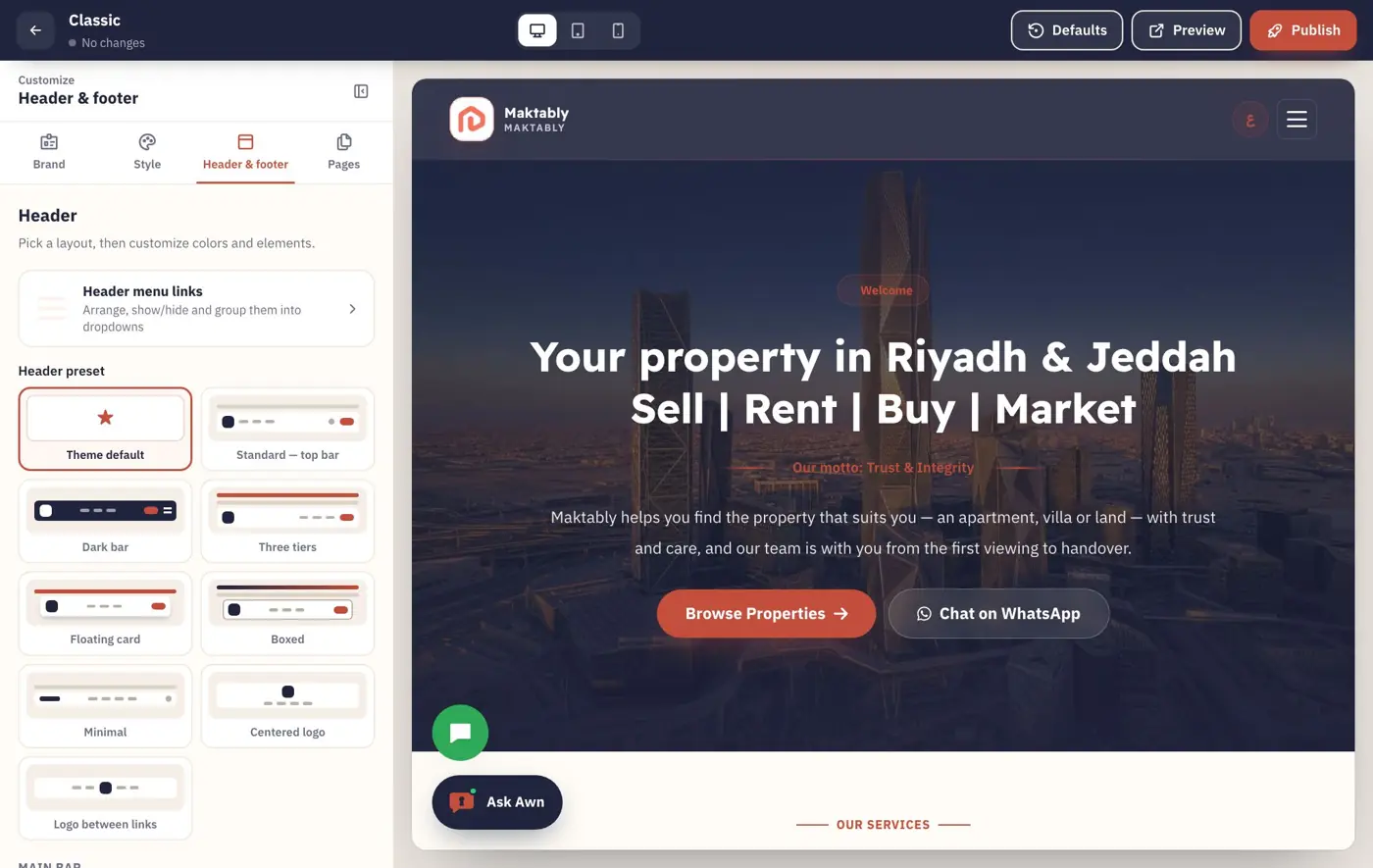
Open the Header & footer tab, pick a style from the examples, then adjust your footer.
Header styles
Pages
Edit your pages or add new ones, with no coding.
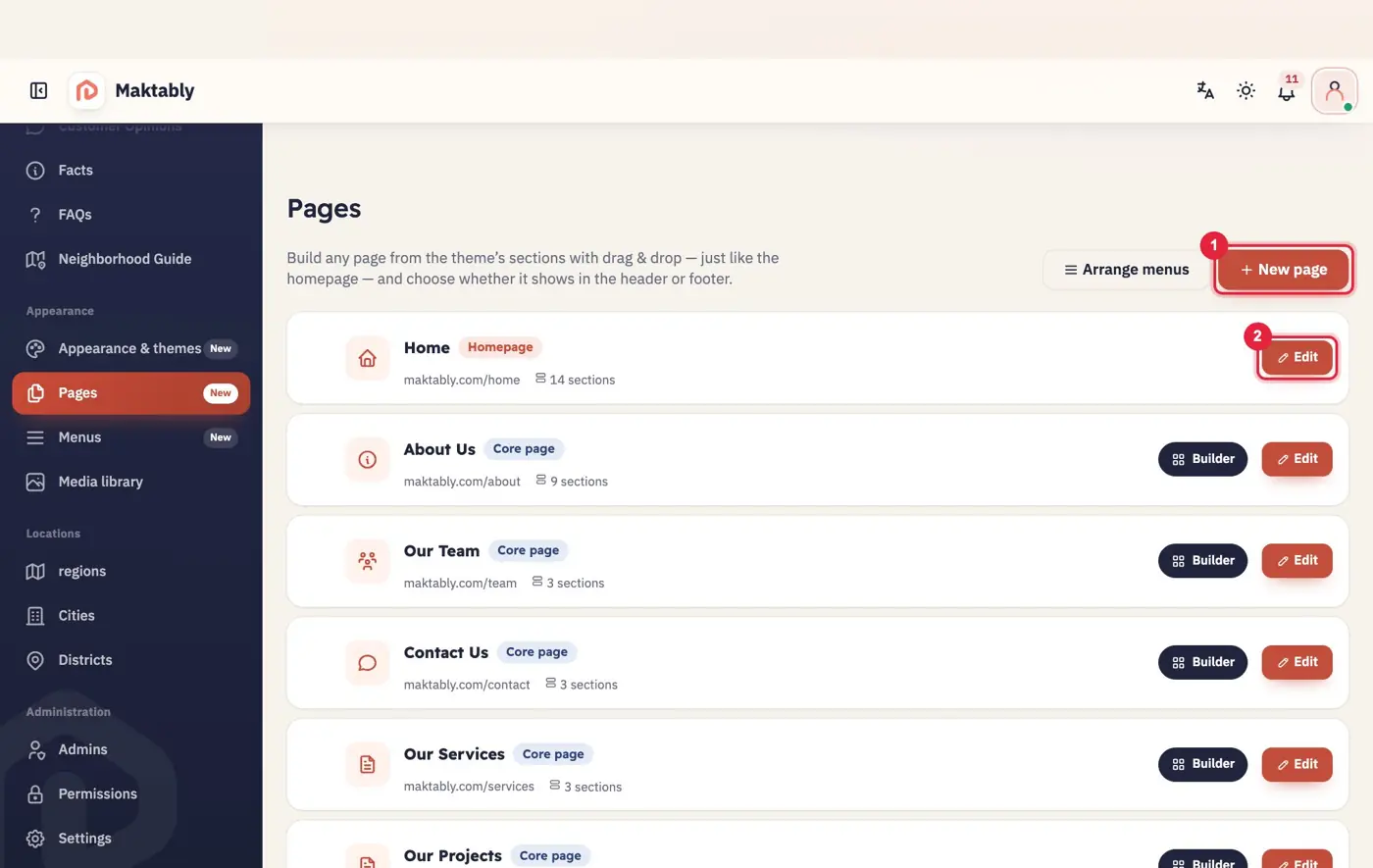
1Open Pages. Press (1) “New page” to add a page, or (2) “Edit” to open an existing one.
Your pages
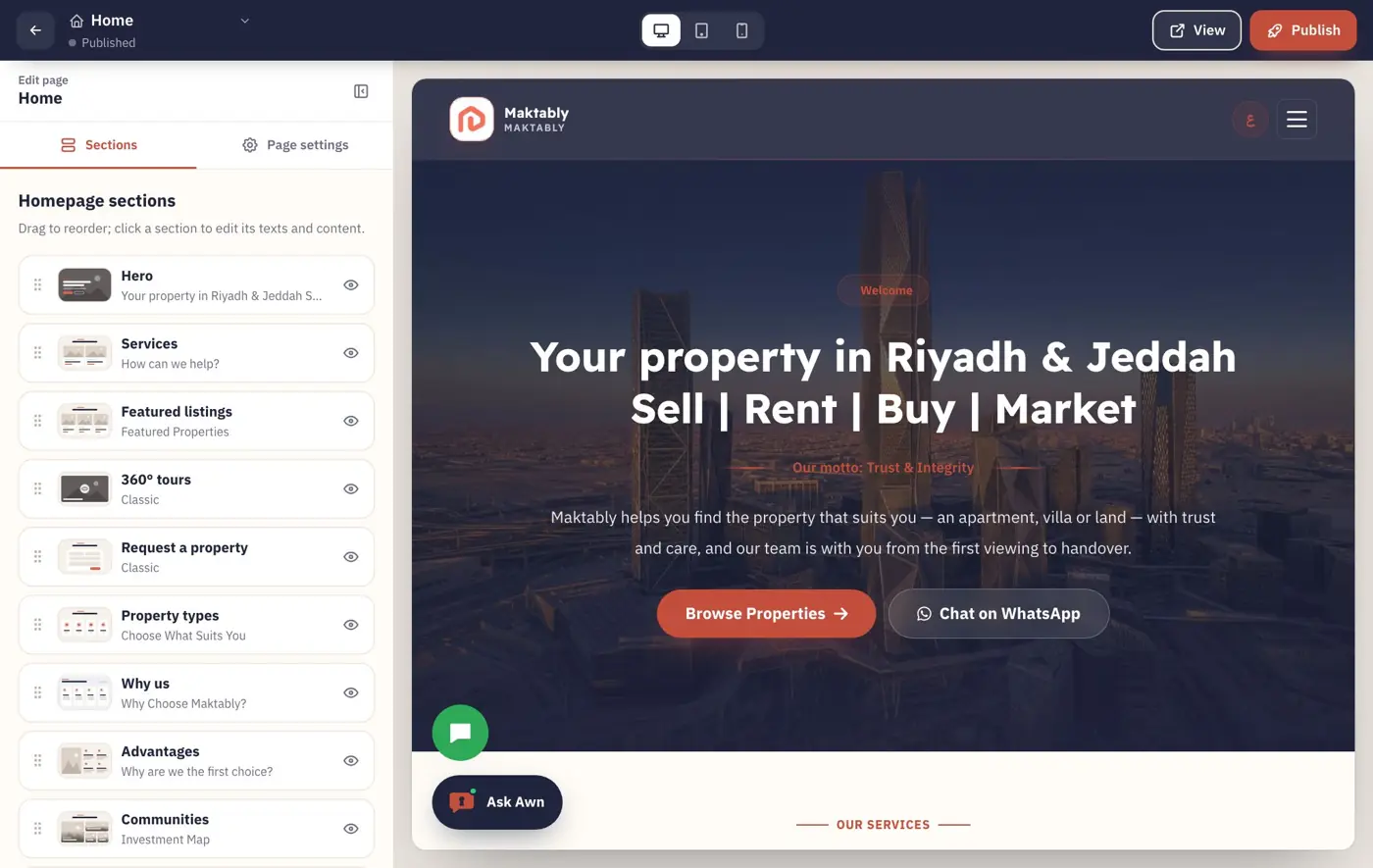
2In Sections, show or hide any section, edit it, and change its order. The result appears in the preview beside you.
Page sections
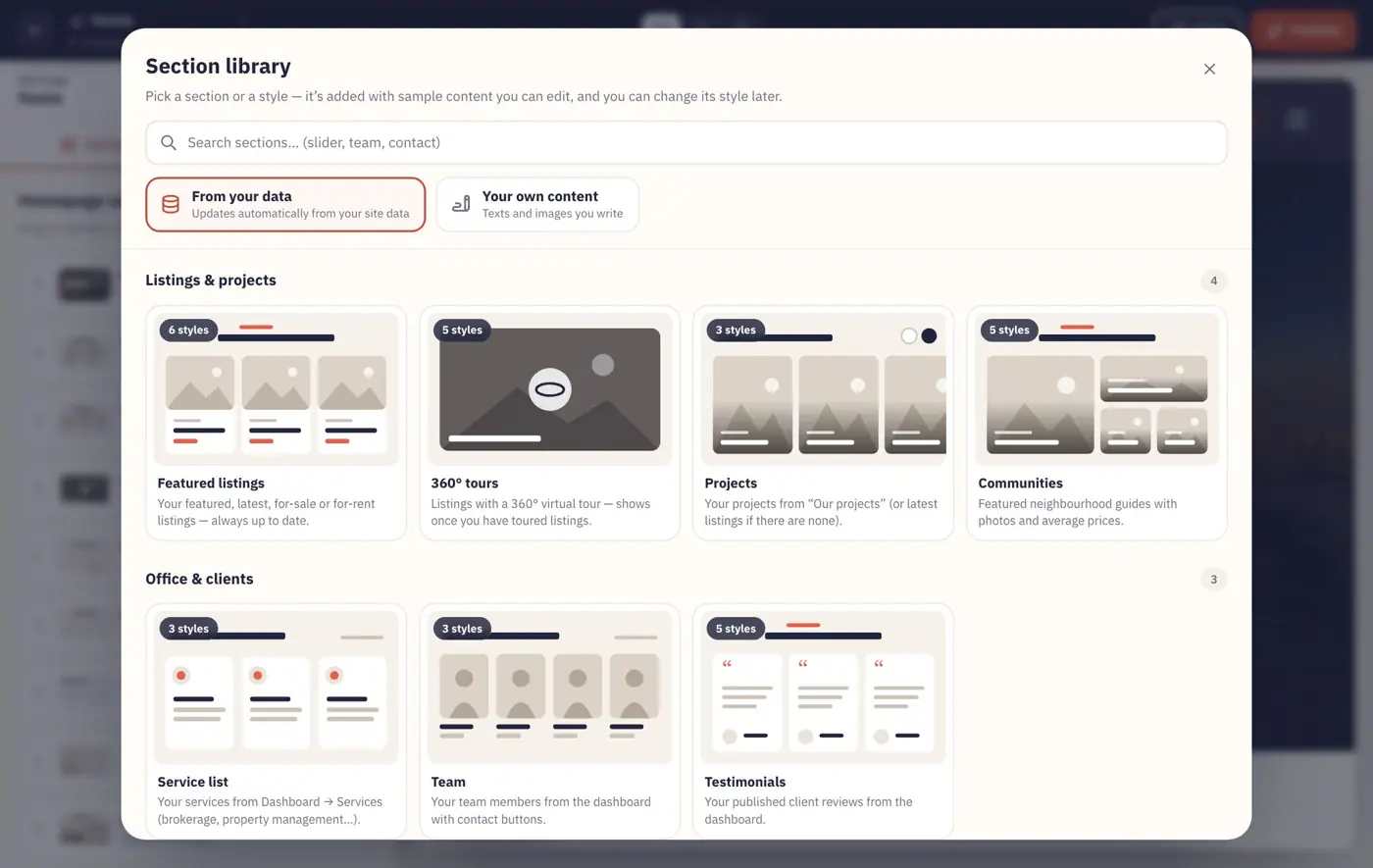
3Press “Add section” and choose one from the Section library.
Section library
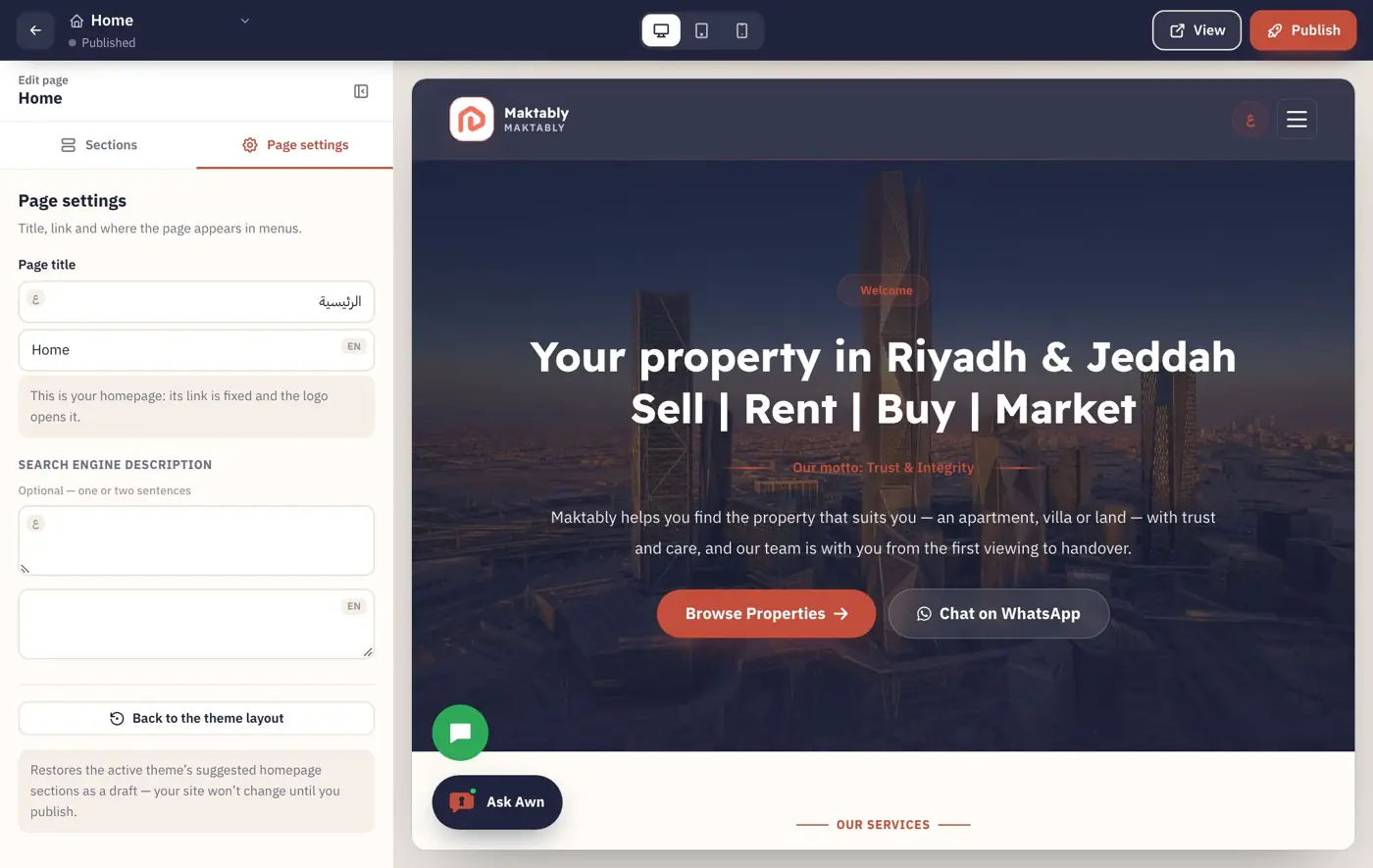
4In Page settings, enter the page title and description to help it appear well in search engines, then press “Publish”.
Page settings
Menus
Decide which links your visitors see.
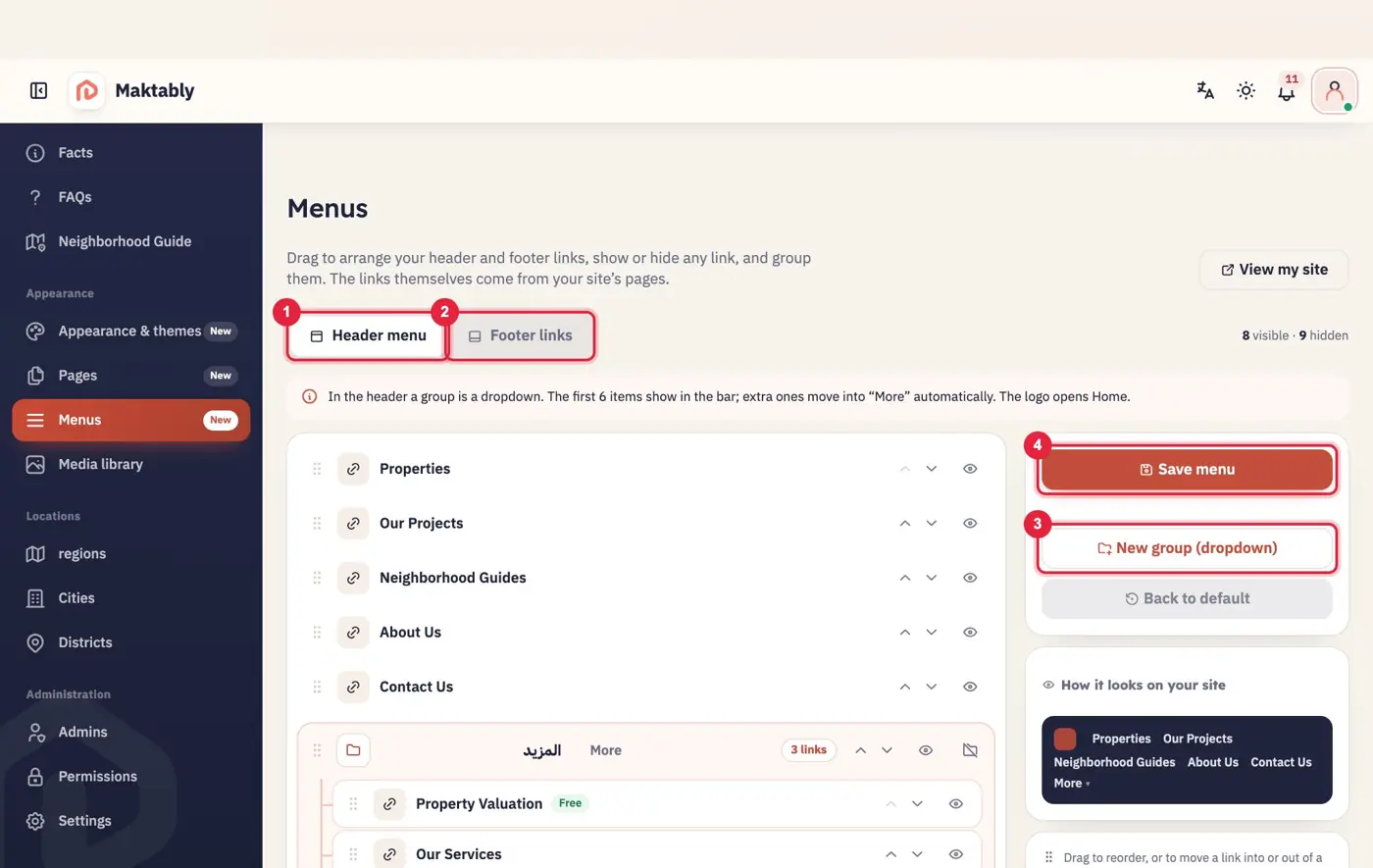
Open Menus and choose (1) Header menu or (2) Footer links. Reorder links or hide what you don’t need, use (3) “New group” for a dropdown, then press (4) “Save menu”.
Arranging menus
Short menus work better on phones. We suggest no more than 6 or 7 header links.
Images
Keep all your images in one place.
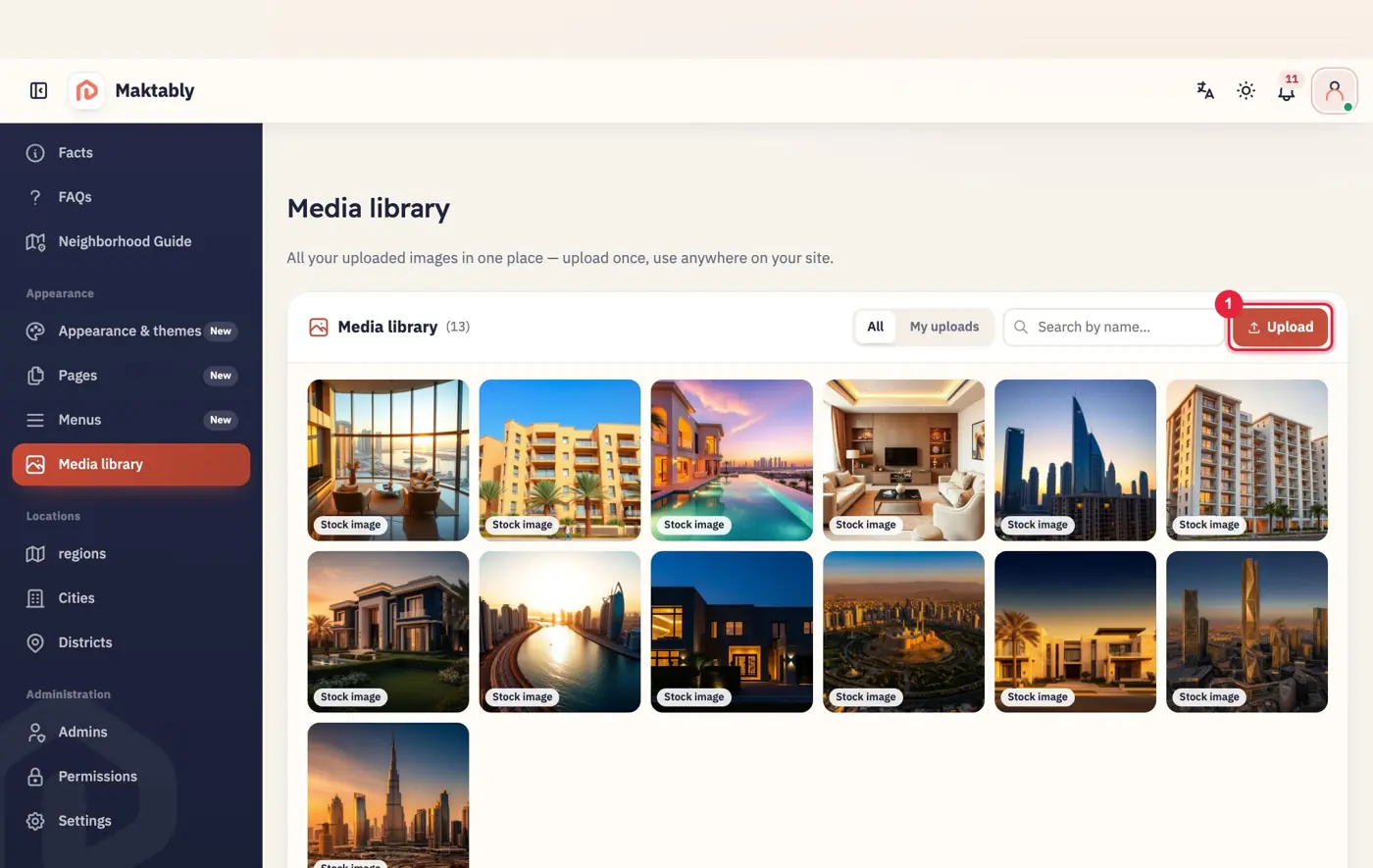
Open Media library and press (1) to upload your images. You can then use any image in any section.
Media library
Add your properties
Now it’s time to show your properties.
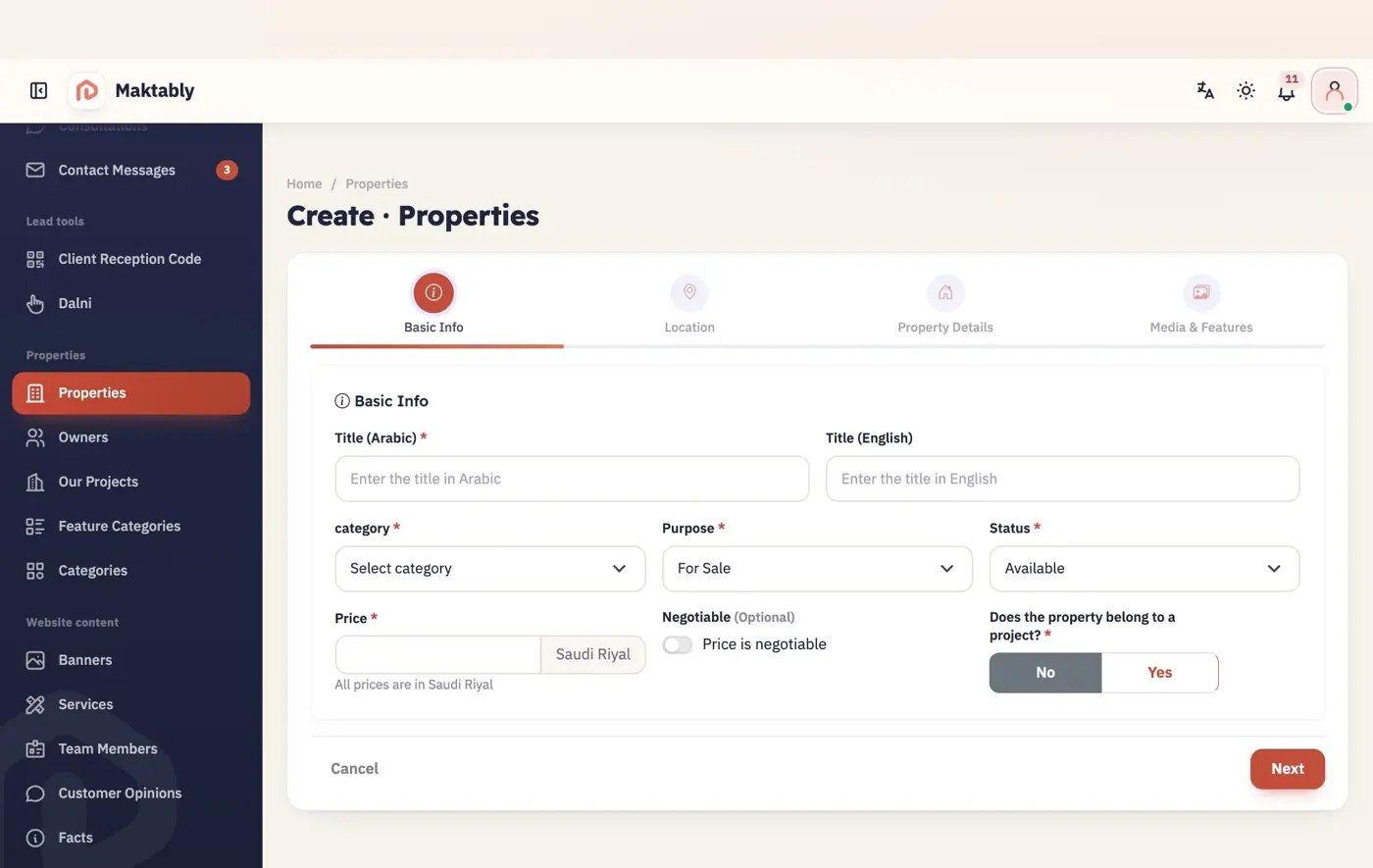
Open Properties and add a new one. Enter the basic details, then the location, specifics and photos, step by step.
Adding a property
Add your team
Give each employee their own account.
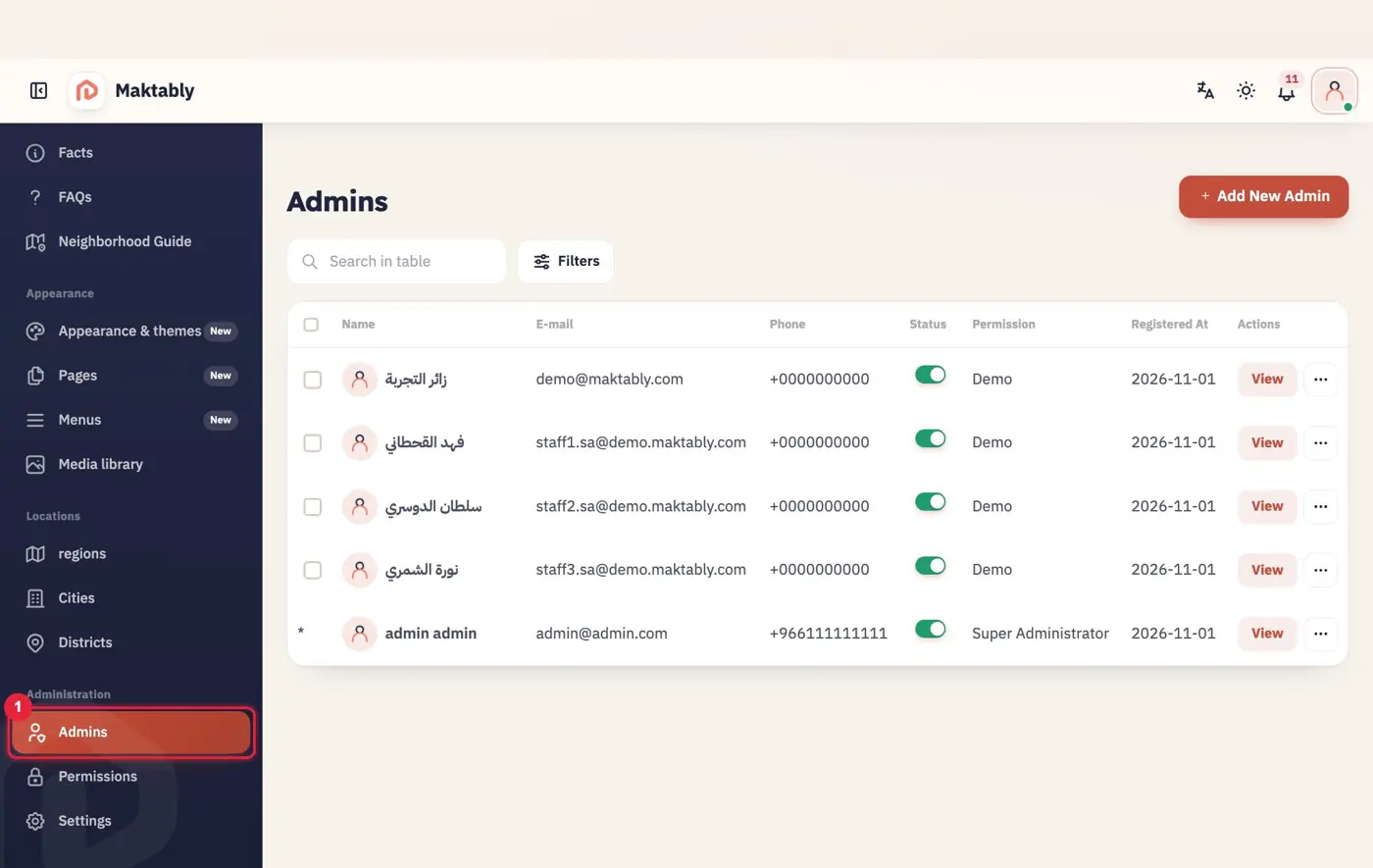
Open (1) Admins, add each employee, and set their permissions. You can stop any account at any time.
Team accounts
Review and launch
Check your website before sharing it with your clients.
Open your website on a computer and a phone, and check these points:
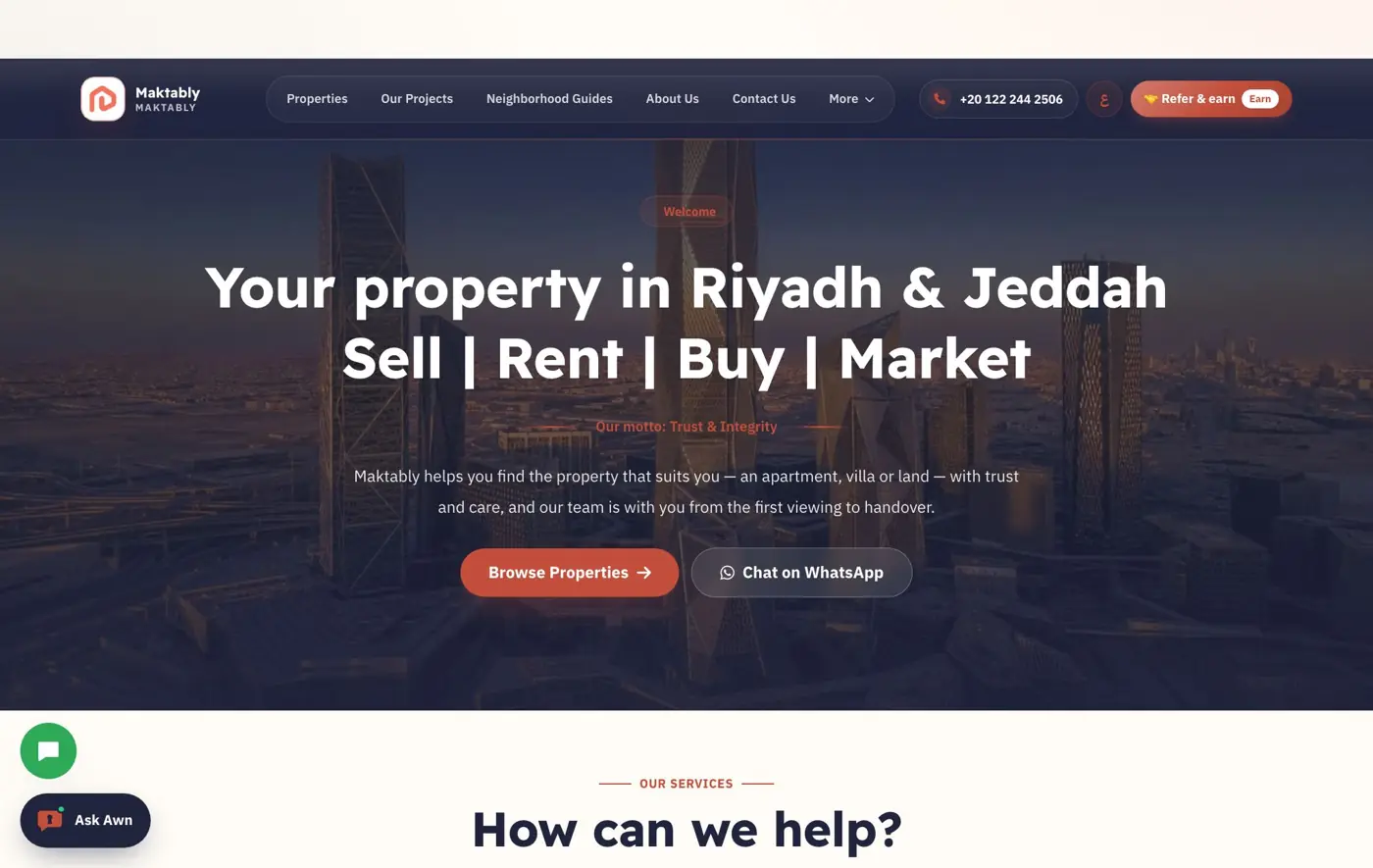
Your website, ready for clients
Your logo and office name are correct.
The colors suit your brand and text is easy to read.
Your phone, WhatsApp and email are correct.
All menu links work, and no pages are empty.
Your own properties and photos are showing.
Try these steps yourself
Open a demo website and a full dashboard before you decide.
Optional · just 2 minutesHelp our team understand your office before we contact you
Four short questions that help our team get to know your office and its needs, so the first call focuses on what matters to you.